BeamIt helps you keep your audience informed and engaged—before, during, and after your event. Download resources, set up your room, and make communication effortless.
Detailed setup instructions, room management tips, attendee connection tools, and best practices for running a smooth BeamIt-powered event from start to finish.
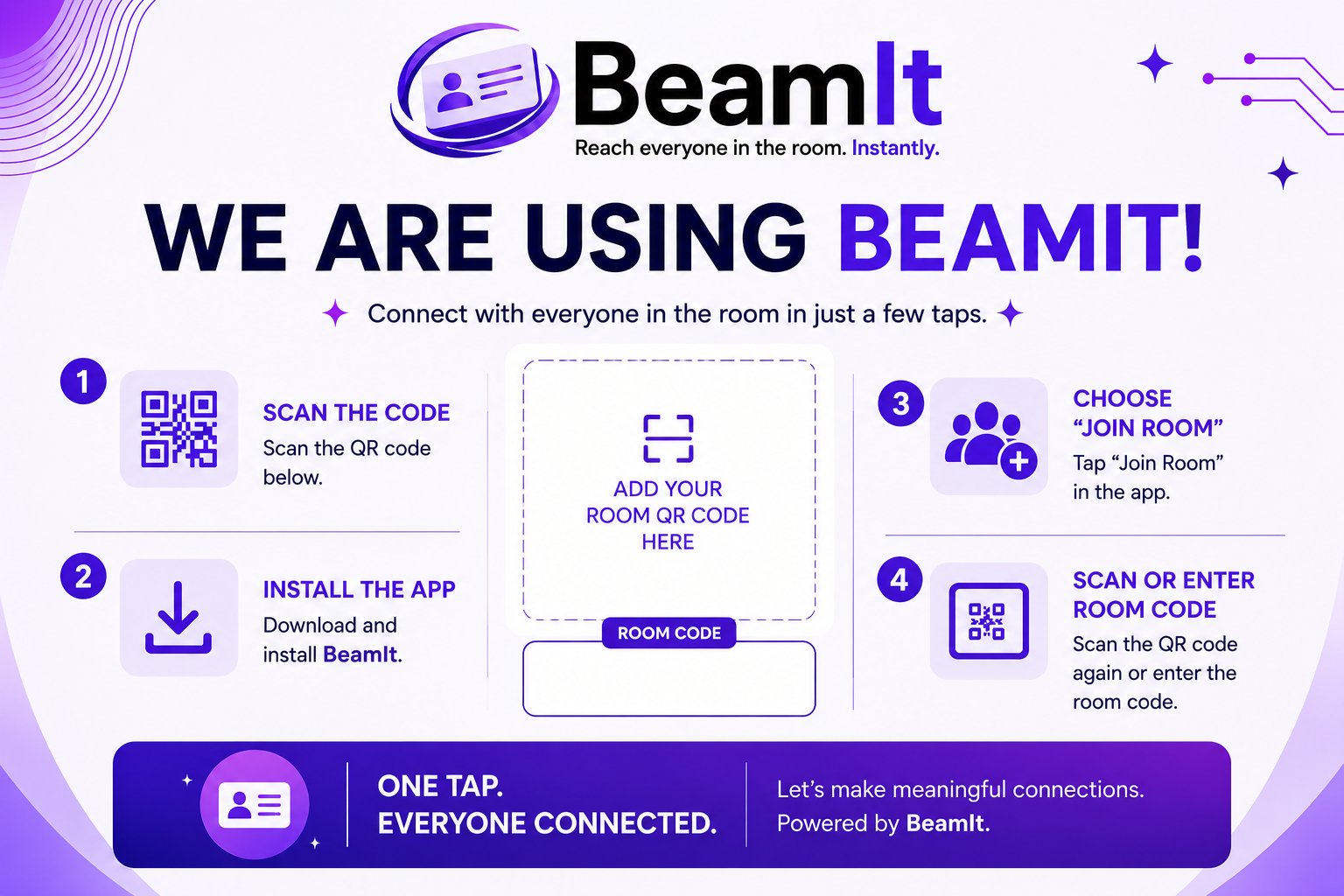
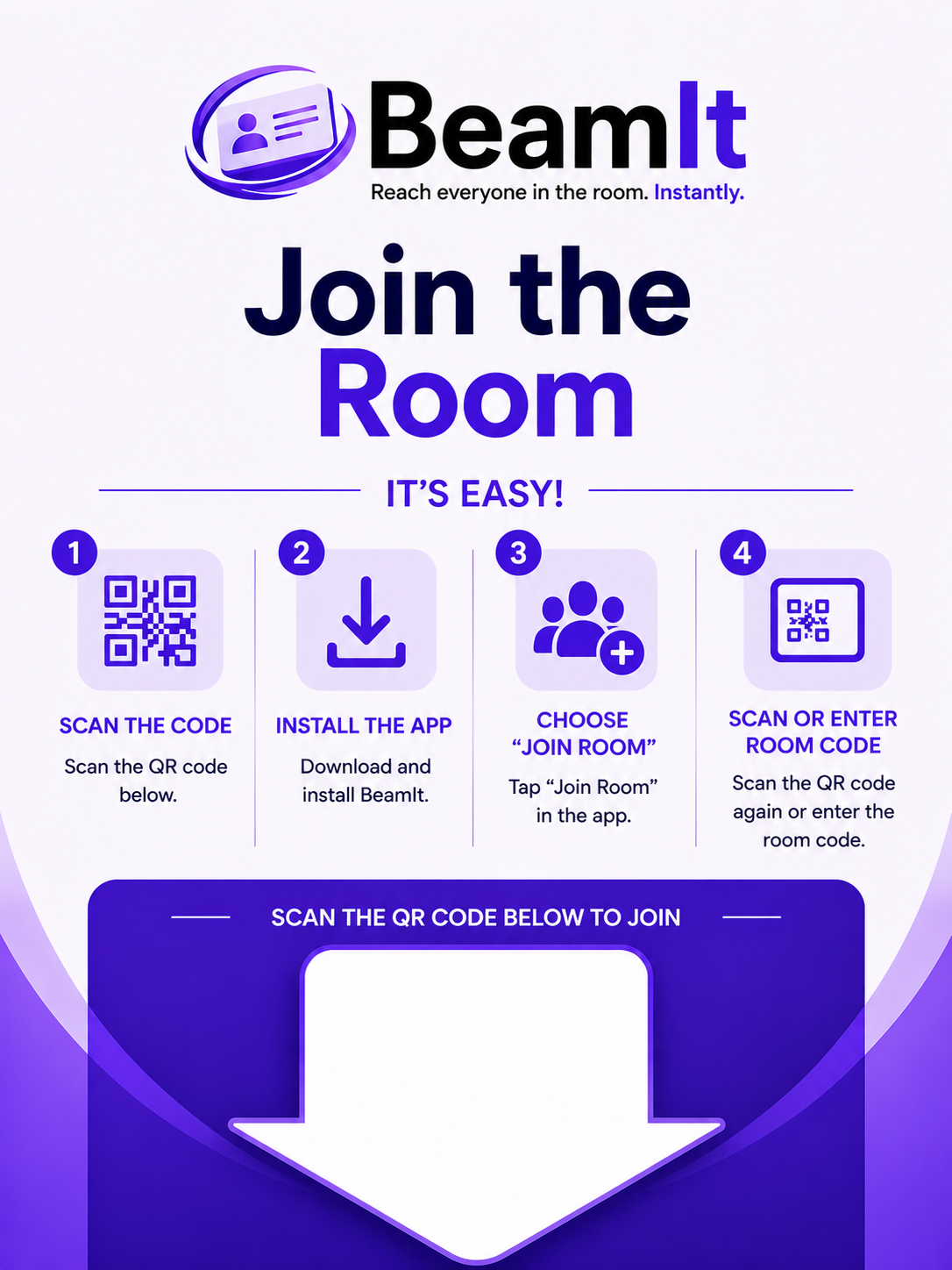
Print and display this sign outside your room along with your room code and QR so attendees can easily join.
Display your room QR code on-screen so attendees can quickly join, connect, and receive your event information instantly.
Short on time? Let our team do the heavy lifting. Request free, professional setup support to get your rooms and pages ready to go.
No confusion. No repetition.
Watch how BeamIt helps organizers keep attendees connected, informed, and engaged.
Cards are designed to be shared with everyone in a room, similar to a digital business card. They contain key information that an individual wants others to have—such as contact details and social links.
Pages are typically used by room organizers or administrators to share structured information with attendees. Instead of personal details, pages are ideal for event content such as schedules, speaker information, links, and other resources.
You can send one card and one page per room. This helps prevent spam and keeps communication clear.
You can include as many links as you want inside that card or page.
If you send a different card or page to the same room, it will replace the existing one for all attendees. This keeps everyone aligned with the latest information.
You should create your card and all pages before the event.
You must create a card before you can create a BeamIt page. This can be a card with just the name of the room—no additional information is required.
Create your pages, then create your room and download the room code and QR code.
You can create rooms up to 10 days before your event, and each room will remain open for the full duration you set.